

Direct Entry of Results – By Cohort (Entering Achievement Via Units)
There are 2 ways to use the Direct Entry of Results feature
- Direct Entry of Results – By Learner
- Direct Entry of Results – By Cohort (recommended for qualifications involving single units or components e.g. ESOL and Bitesize English and Maths)
Please note: When submitting large batches of claims we recommend saving periodically to your basket to ensure your session remains active and uninterrupted
Entering Achievement for a Cohort
- Select ‘Actions’ menu at the top of the screen
- Select ‘Your Cohorts’
- Search and select the Cohort ID
- Select ‘Results’
- Select ‘Direct Entry Results by Unit’
- Select the unit from the drop-down list
Two options are now available:
Select individual learner achievement by clicking the drop-down within the –please select– box
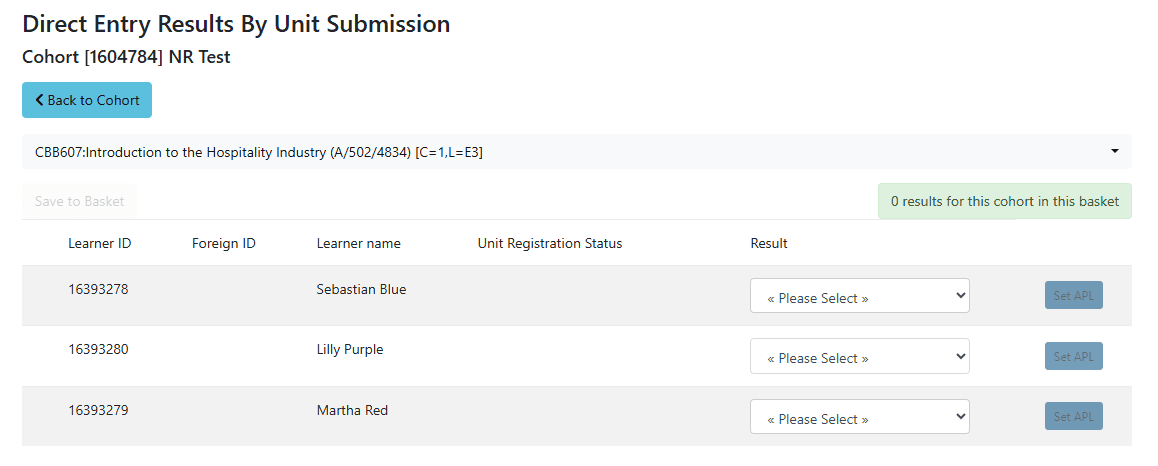
- Click ‘Save to Basket’
- Repeat steps 6 and 7 until all achievement is recorded
The Shopping Basket
All learner achievement should now appear in the shopping basket at the top of the screen
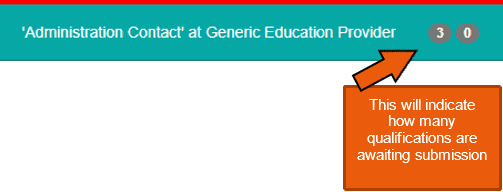
Click the numbered button to access the basket.
Submitting Results for Certification
Results must be submitted once selections are complete.
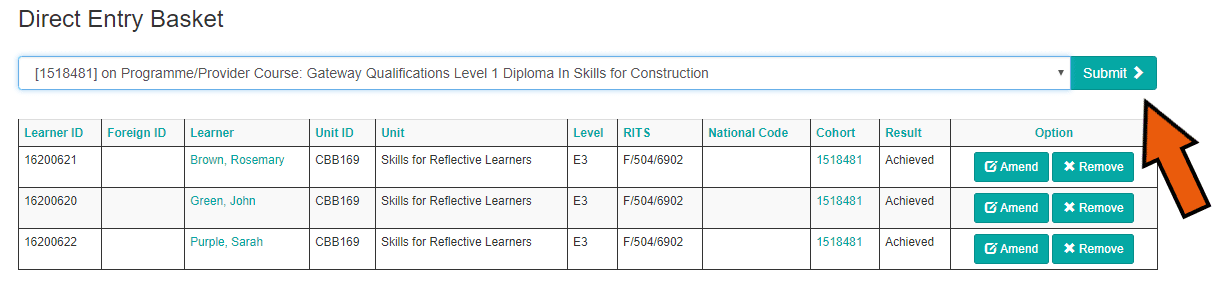
- Select the cohort ID form the drop-down list
- Check learner / results list – amend or remove information as required
- Click ‘Submit’ to confirm the submission
- Click ‘Confirm Submission’ to send the results
- Message ‘A set of direct entry results has been submitted’ will be displayed
DER Symbols
When visiting a cohort via a DER method where activity is in progress you will be greeted with one of the following messages:
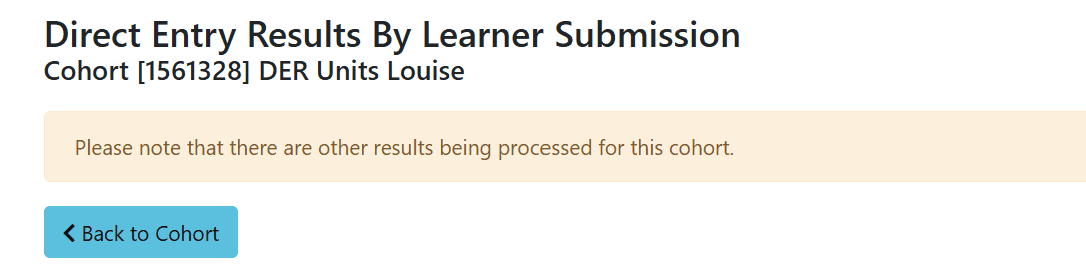

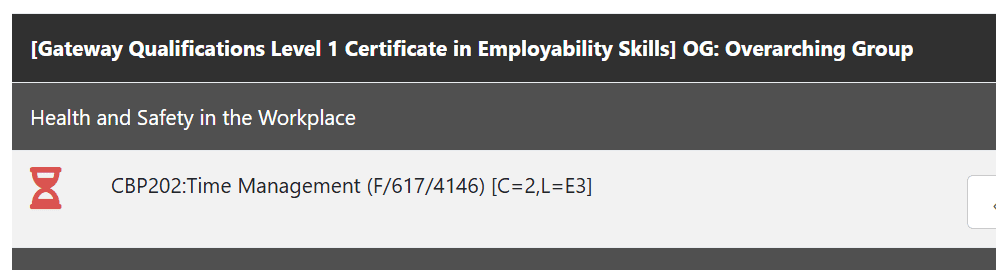
To locate the units in progress there are accompanying symbols that will appear beside the affected units to illustrate their current state:
The egg timer symbol indicates results for this unit has previously been submitted either by yourselves or a colleague but not yet processed.
The red warning symbol indicates the results are in a colleagues basket and not yet submitted to us.
You have the ability to override and submit that claim yourselves or pick up with the necessary account to submit.

The black tick symbol indicates this units has already been verified and results released by our Quality Team. The ability to make amendments will be blocked.
